
When older gamers shop for headsets, I find that most of their focus is placed on the speaker or sound quality while the mic quality is all but ignored. This is probably due to the fact that we use our headset speakers more than we do our mics.
But mics need love too. How else is that 12-year-old halfway across the globe going to hear you shout obscenities at him while he dominates you in FIFA? So, when you purchase a headset, you need to make sure that your mic is working as well as your speakers are. In this guide, we’ll talk about how to test your microphone.
The methods in this guide aren’t exclusive to gamers. Whether you’re using your microphone to broadcast podcasts, communicate to people through VoIP or record terrible spoken-word poetry; you can apply the incoming tips.
Is My Microphone Working?
Not only do you have to worry about whether or not your mic is working but you also have to worry about if it is working effectively. Clarity is important. There is no point in recording or broadcasting if all you are transmitting is static and distortion.

In this guide, we will explore how you can test your microphone on a plethora of different platforms. Whether you are using an embedded laptop microphone, a cheap gaming microphone or one that is built into your high-end headphones, there is no prejudice here; we have a solution for everyone.
Testing Microphone on Windows
Microsoft used some very sly tactics to ensure that Windows 10 would one day become the most used operating system (for PCs) in the world. It only took it forty-one weeks to dethrone Windows 7. However, this isn’t as surprising as the fact that many consumers are still using Windows XP. It still holds over 1.50% of the total Windows global market share (according to Statcounter.com).
In this section, we’ll show you how you can test your microphone offline on Windows XP, 7, 8/8.1 and 10. While we understand that there are tools you can download and use to test your microphone, some users may be worried about their privacy and security. That is why it was imperative for us to make this guide as inclusive and comprehensive as possible.
Testing Your Microphone on Windows XP:
The easiest way to test your Microphone on Windows XP is by using Windows Sound Recorder. To open and use Sound Recorder on XP, follow these steps:
- Click on Start
- Click on All Programs
- Click on Accessories
- Click on Entertainment
- Click on Sound Recorder
- Double-check that your microphone is connected to your PC, then click on the Record button and speak into your microphone
- Click on the Stop button and play your record back to listen to it
If you are not getting any output, try re-recording your voice. If on the third try, you are still not getting any playback, then there may be an issue with your microphone, speaker or sound card.

Make sure that your microphone’s volume is turned all the way up under Windows Volume Control settings. You can also try turning Mic Boost on. If you have performed all these verifications and checks and your mic still refuses to record, then there might be a hardware issue.
Testing Your Microphone on Windows 7:
- Run Windows Control Panel
(Start > Control Panel) - Make sure that you’re viewing Control Panel’s items according to category then select Hardware and Sound
- Under the Sound section, (which is marked by a speaker icon) click on the ‘Manage audio devices’
- This will open up the sound properties screen. Click on the tab marked ‘Recording’
- From this screen, you will be able to see all the recording devices connected to your computer. Next to each recording device, you will see a meter. This meter goes up every time your recording device picks up any noise. Speak into your microphone to see if the meter rises.
If the meter registered any noise (by rising) while you were speaking into your mic, this means your mic works and is properly configured. You can then test the recording quality by running Windows Sound recorder (Start > All Programs > Accessories > Sound Recorder).
If the meter next to your recording device did not register any noise, then try to turn up the recording volume. You can do this under the device’s properties on the ‘Levels’ screen.
Testing Your Microphone on Windows 8/8.1/10:
- Open Windows Control Panel.
You can do this by opening the Windows Run dialog (Win+R), typing ‘Control Panel’ into the open text field and then clicking on the OK button

- Make sure you’re viewing all Control Panel items according to either small or large icons (not category)

- Click on the Sound item

- Click on the Recording tab
- On this screen, you will see a list of all your recording devices. Next to each device is a set of bars (a meter). If your mic works properly, then each time it picks up any noise, the green bars of the meter will rise and then fall back.
Test your mic by speaking a few words into it or clapping your hands

- If your mic didn’t register anything in the previous step, try increasing the volume:
- Click on your microphone from the list of recording devices
- Click on properties

- Select the Levels tab
- On this screen, you will see two different levels: Microphone (Volume) and Microphone Boost. Use their sliders to set both properties to their maximum values.
- Click on OK to close the window
- Once, you have increased your volume, try testing your Mic again.


If your microphone did not register any noise, then there might be a software or hardware issue. If you are using a USB, wireless or inbuilt microphone, make sure that the drivers are properly installed.
If your microphone seems to be working from the last test, then you can test its recording quality by using Microsoft’s Voice Recorder. The Voice Recorder app comes standard with every version of Windows. Just search for it in your apps.
Testing Microphone on MacOS
Mac OS X is the fourth most used operating in the world. While it is not currently the most ideal platform for gaming, we have heard rumors and murmurings that Apple will bring more games to their desktop devices through Apple Arcade. Wireless gaming headsets with 7.1 surround sound pair well with Macs. In this section, we will show you how you can test the microphone on OS X.
Testing Your Microphone on MacOS X:
*Note: This should work with previous versions of the macOS too.
- Click on the Apple icon on the top left corner of your screen
- From the Apple context menu, select System Preferences
- In the System Preference window, click on the Sound item
You can use the search function to find it quicker - Once the Sound properties window opens, click on the Input tab near the top of the screen
- From the input screen, you will be able to see all your recording devices. Click on the mic you want to test and then speak into it. If your voice registers and the microphone is working fine, you’ll see a rise in the input level meter

- If the input level doesn’t show a flicker or a rise, then try increasing your microphone’s volume and then testing it again

Testing Microphone on Linux
Based on Google’s search trends and various online communities, Ubuntu still seems to be the most popular Linux distro. It is one of the most stable distributions and receives some of the biggest support. Therefore, in this section, we will show you how to test your microphone on Linux Ubuntu (18+).
Test Your Microphone on Ubuntu:
- Click on the downward arrow located next to the power button on the top right corner of your screen. A menu should then appear
- Click on the settings icon at the bottom left of the menu

- From the left panel of the screen, click on Sound
- From the main screen, click on the input tab

- On the next screen, you will see an input volume, input level meter and list of your recording/input devices. Click on the input device you want to test (your microphone) from the list and make sure it is turned on.
- Test your microphone by speaking into it or clapping your hands. If your mic is working, you should see the input level rise or flicker

- If no input is registered on the input level meter, try increasing the microphone’s volume and testing it again.


Testing Microphone on Xbox-One
A good headset is practically vital to your online gaming experience. Not only that, but Microsoft also allows you to use Cortana voice commands to control and interact with your Xbox-One in some very interesting ways. So let’s say you got yourself a new awesome Xbox-One headset, how do you test the microphone?
Test Your Xbox-One Microphone:
- Login into Xbox Live (on your Xbox One Console)
- Press the Xbox menu button on your controller to open the guide
- Under the Party item, choose ‘Start a party’
You don’t have to invite anyone – this is just a test - Make sure that your microphone is not muted in Party Chat. You can mute and unmute by pressing the Y button on your controller.
- Speak into the Microphone
If your microphone is working, then you’ll see the ring around your profile gamer pic glow - If the ring doesn’t light up, make sure that the mic isn’t muted on the actual headsets then try speaking into it again
Alternatively, you can also use the Skype app to test your Xbox One headsets but we felt this method was easier.
Testing Microphone on PS4
Globally, the PlayStation 4 is the most popular console of this generation. One of the things that it holds over the Xbox is native support for wireless headsets, USB headsets, and 7.1 headsets. Therefore, the PS4 can deliver better sound with less hassle. If you got yourself some third party or licensed PS4 gaming headsets, one of the first things you will want to test is how you sound on them.

Testing Your PS4 Microphone:
- Make sure that your headset is connected and the mic isn’t muted on it
- Press and hold down the PS button on your PS4 controller, until the options screen displays
- Navigate down to device management and select it
- Select the mic you want to manage from the device list
- On this screen, you will see a mic input level meter that will register any noise that the mic picks up. Speak into your microphone and see if the input level rises. You can also adjust your volume and test it again.
Another way you can test the PS4 Microphone is by pressing L2 on the main screen and enabling voice commands. Then you can try speaking to your PS4 and see if it picks your voice up. Alternatively, you can try recording a voice message on it and listening to the playback.
Testing Microphone on Nintendo Switch
The Nintendo Switch may be looked at with some disdain from hard-core gamers but it is the most popular console in Japan. So if you have a headset mic that you would like to test on your Nintendo, we will not leave you out in the cold.
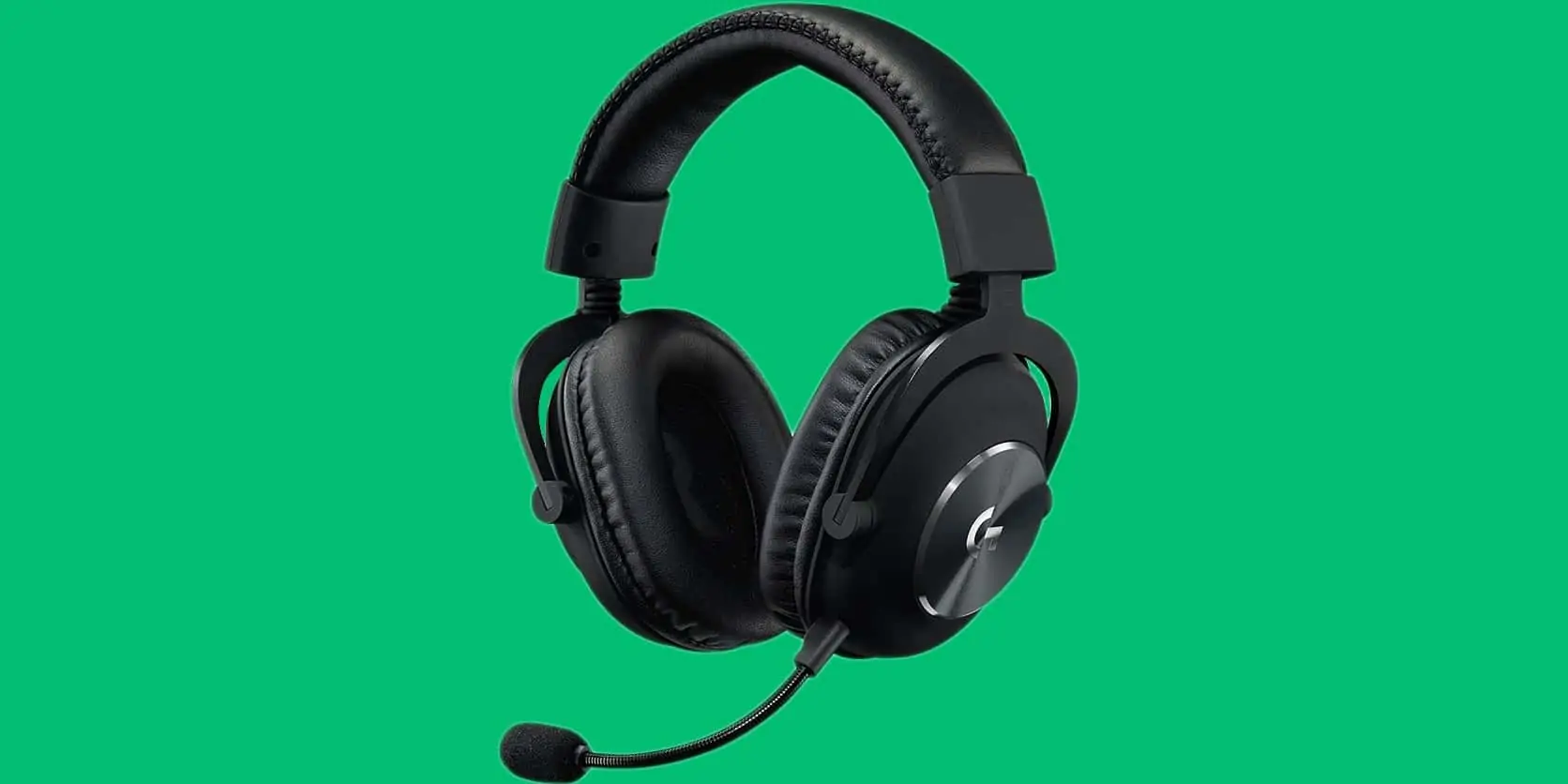
Testing Your Nintendo Switch Microphone:
- Navigate to the System Settings icon on the home screen and then tap Open.
- Scroll down and select Other Settings
- Tap on the right arrow to go to the next page
- Select Mic Test
- On the next screen, you will see a microphone sound level meter. Make sure that your microphone is connected and is not physically muted. Perform a mic check by speaking into your microphone. If it works, the sound level meter next to the microphone icon will rise or flicker
Final Word
In this guide, we tried to include as many mic check methods from as my platforms as possible. If you are comfortable with sharing some of your information online, you can always use online resources such as the WebRTC Troubleshooter or the vidyard mic test to test your microphone.
If you find that your microphone is not working, then maybe it is time to replace it. For tips and helpful recommendations, visit our guide on the best microphone for gaming. Either way, I hope that you have found this guide to be helpful, thank you for reading.